| Insider TA™ Pro has a File Scan Utility that allows you to search
your portfolio for indicators embraced by Insider TA's analysis methods
(NOTE: the Demo and Standard versions have the same File Scan Utility,
but scanning is limited to demo files only).
Defining the various search parameters is exercised using a system of
buttons and switches, as shown below:
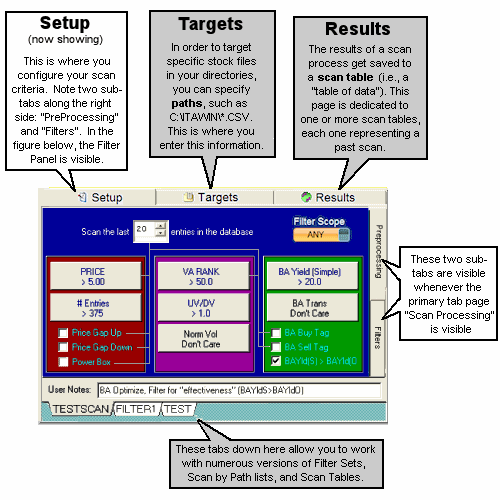
INSIDER TA's File Scan Utility
Q: Please suggest
a good approach on scanning and how to effectively set the various switches
in the Filter Panel.
A: A good first step in using ITA's Scan
Utility would be to optimize the Box Analyzer (BA) settings for each stock
in your portfolio. This is something you would normally do the first
time you load a stock to view. But the File Scan Utility can perform this
automatically when you run a scan with no filters set along with
the following two buttons checked ON, as shown in Figure 1 below:
- The button labeled "Optimize BA after Loading".
- The button labeled "Save settings to View Database if Scan Passes"
Since BA Optimizing determines unique switch settings for each stock,
it is recommended that you save those unique settings. That is the
purpose of the View Database. The View Database automatically updates
information about a stock any time you load a stock for viewing.
The scanning process, on the other hand, must be told to do this.
For this reason, observe how the button labeled "Save settings to
View Database if Scan Passes" is enabled.
It is important to note that the View Database is updated only
if the scan passes for the given stock file. Since no filters are
set in Figure 2 below, we are guaranteed that every stock
will pass the scan. This ensures that the File Scanner will optimize
your entire portfolio and save their optimized settings to the View Database.
We also recommend you set the purple "Rank Window" switch checked to
ON. So here's how you should configure the "Preprocessing" and "Filter"
sections:
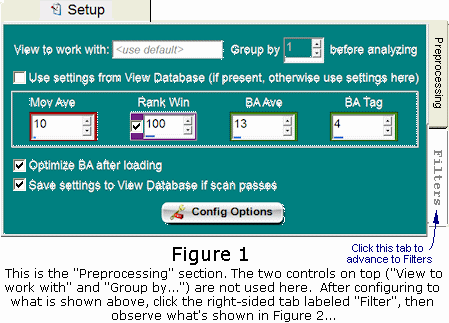
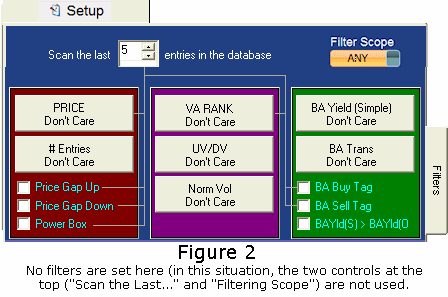
After you have duplicated the above settings, click the "Scan" button.
Then select "Express Scan Mode". Now take a break! Enabling the "Optimize
BA After Loading" function increases the total scan time considerably.
So, if your portfolio numbers in the hundreds or thousands, this initial
scan might take a while to complete.
When your scan is done, you will now have a complete set of optimized
data. And thanks to the View Database, Insider TA is able to remember
all optimized BA switch settings for each and every stock. For all
future scans, you will then want to turn off the following switches in
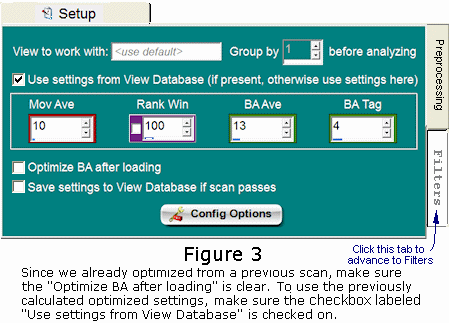
the Preprocessing Panel (Figure 1 above):
- "Optimize BA after Loading"....turn OFF.
- "Save settings to View Database if scan Passes"....turn OFF.
You should now conduct all scans with the following switch checked to ON...
- The checkbox labeled "Use Settings from View Database" (Figure 1 above).
Sample Scan #1
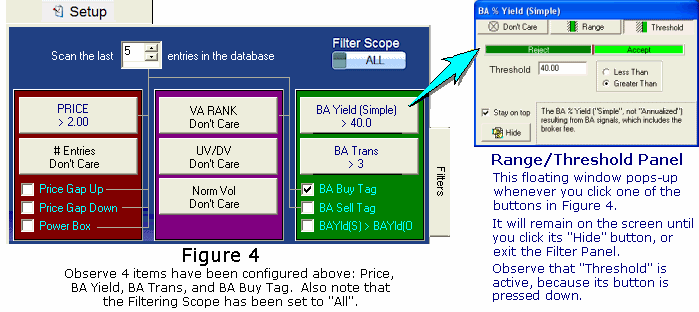
Let's say you want to scan for stocks whose price within the last 5
days is greater than $2 per share. You also want to single
out those stocks whose BA-optimized results provide yields greater
than 40%. In order to avoid those stocks whose high BA yields are
attributed to only one BA Buy:Sell pair (phrased as a "Transaction"),
you might want to specify that the number of Buy:Sell pairs (Transactions)
be greater than 3. Now that we have a set of instructions for obtaining
stocks with good BA performance, let's say we want to see those that
have been tagged recently (within the last 5 days) with a BA Buy Tag.
Hence we will need to turn on the "BA Buy Tag" checkbox.
In the preceding paragraph, four filter settings were discussed:
- Price > $2
- BA Yield > 40%
- # Transactions (i.e. Buy:Sell pairs) > 3
- BA Buy tag within last 5 days.
In order that all these filters be met before a stock file passes the scan,
we must ensure that the "Any/All" options in the Filtering Scope slider switch is set to "All".
The following figures 3 and 4 illustrates how the Preprocessing and Filter
Panels should look after all of the above criteria are entered.
Sample Scan #2
Now for something completely different...
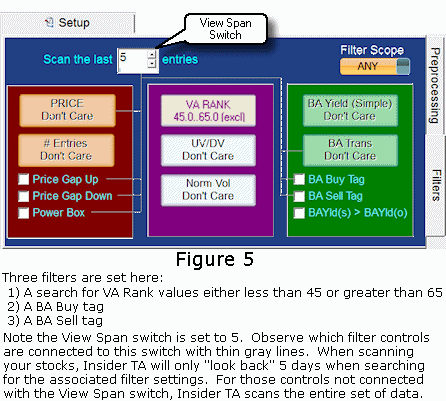
Let's try a scan that searches for good BA buy or BA sell or
VA RANK buy or VA RANK sell points. For this to work for the BA
part, all we need to do is click the "BA Buy Tag" and "BA Sell Tag" switch
to ON. You'll observe that there are no "VA RANK Buy Tag" or "VA RANK
Sell Tag" switches. As discussed in your Users Manual, VA RANK buy tags
are generated whenever the VA RANK function exceeds a certain "buy
threshold" value, and VA RANK sell tags appear wherever the VA RANK function
drops below a "sell threshold" value. In other words, you're interested
in VA RANK values that fall outside of a certain range of values. Let's
say you want to see stocks whose recent VA RANK has risen above 65.0
or fallen below 45.0. This criteria is achieved by entering
a VA RANK Range of 45.0..65.0 (Exclusive).
Now all that's left to be done is set the "Any/All" toggle switch to
"ANY". The resulting Filter Panel should now look like the following...
That's all there is to using the Filter Panel. Of course, not all variations
were discussed here. There are numerous approaches and strategies, and
each one can be saved to a separate database for easy retrieval later.
Q: When running
a scan for BA buy or sell tags, I find several stocks whose buy and sell
tags appear darker than the rest. Why is this?
A: Based on Richard Arms' Ease of Movement (EMV)
methodology, a Box Analyzer (BA) tag -- either buy or sell -- is signaled
whenever the string of BA data points progress in the same direction for
"x" consecutive times. Let's call this a chain of BA Moves, and
it is what generates BA buy and sell tags.
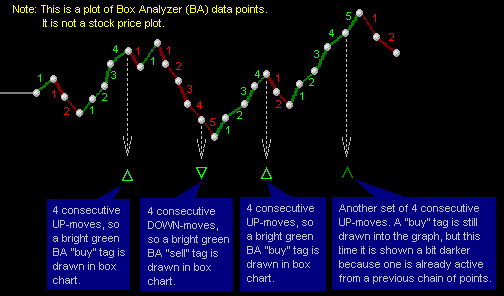
It is not uncommon for two or more consecutive buy or sell tags to be
generated. In these cases, Insider TA draws the first tag in a bright
green color, and all subsequent tags with a darker green. Only after a
tag in the opposite direction is encountered will a bright green
color be used again. This scheme helps reduce the clutter of repetitious
BA tags that may occur...Insider TA only emphasizes the first one.
An example will help illustrate this point. Observe the UP (shown green
below) and DOWN (shown red) progression of BA data points, and let's say
the threshold for signaling a BA buy or sell is 4 consecutive moves...
You can disable this tag dimming feature by going to the Config Options
Panel, and clicking the "Miscellaneous" section, and then clicking
the "Data Presentation" button. There, you will see a checkbox
labeled "Dim repeat buy/sell tags". Uncheck it to disable the
dimming feature discussed in the preceding paragraphs.
Q: How can I obtain
a printout of data output from the File Scan Utility?
A: Click the "Scan Results" tab, and observe
the option "Output" in the menu bar at the top. This provides access to
saving column data to either a printer, CSV file, or an Excel spreadsheet.
You also have control as to which columns of data you want output..
Q: In the File Scan
Panel, what is the purpose of the toggler labeled "ANY" or "ALL"?
A: In the Filter Panel, there are a variety
of filtering switches at your disposal. Let's say you want to search your
portfolio for stocks whose current price is anywhere between $10 and $50.
In this case, all you need to do click the PRICE filter button. This pops-up
the Range/Threshold window, where you can select the "Range" tab
and then enter a lower limit of $10 and an upper limit of $50, then enable
the button labeled "INCLUSIVE".
Scanning for stocks within a desired price range might not provide enough
focus. You might also be interested only in stocks whose Up Volume To
Down Volume -- or "UV/DV" -- is greater than 1.0. So you would need to
click the "UVDV" filter button and select in the floating Range/Threshold
window a THRESHOLD value of 1.0, then enable the button labeled "GREATER
THAN".
So far, the following filters have been set:
- A price range between $10 and $50.
- A UV/DV ratio greater than 1.0.
We need to tell the File Scanner that both of these criteria must
be satisfied in order to "pass" a stock file. In other words, we want all
of the specified criteria to be satisfied. This is the purpose of the ANY/ALL
toggle switch, and in this case we need to flip it to the "ALL" setting.
If, on the other hand, we wanted one OR the other search criteria
to pass (and not necessarily both), we would flip the ANY/ALL switch to
the "ANY" setting.
Tip:
The best way to use the file scanner is to avoid setting too many filters.
Consider what would happen if every filter was configured...
- If the ANY/ALL switch was set to "ANY", then there's a good
chance just about all files in your portfolio would pass. With
many filtering criteria enabled, there is a higher probability that
one of them will pass any given stock file.
- If the ANY/ALL switch was set to "ALL", then it's most likely
that no files would pass, simply because your conditions are too strict
for any file to possess all of the characteristics you're looking for.
Q: What is the meaning
of the column titled "BA Moves" in the Scan Results tab page?
A: Actually, this is one of the less important
values that we decided to include in the Scan Results tables, but here's
an explanation...
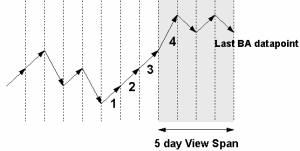
Data in this column reveals the number of consecutive BA moves found
within the file scan's view span. If you recall from your User’s Manual
on BA theory, counting the number of consecutive BA advances or declines
is instrumental in locating potential BA buy and sell points. Although
the Filter Panel has a BA BUY and BA SELL search button, its pass-or-fail
summary is somewhat limited because it does not provide the whole picture
on how BA was performing for all your stocks. The "BA Moves" column fills
this void by providing a simple count (up or down) on how the BA data
points are progressing at the trailing end of each stock database, illustrated
by the following figure...
How the BA Moves Column reports counts
The File Scanner reports the longest chain of BA consecutive moves that
fits either entirely or partially within the selected view span. In the
above figure, note how a value of +4 is returned. Although this
chain does not fit entirely within the view span, it is still accounted for.
|



