In a scheme analogous to the View Tab Manager,
you can tell Insider TA to automatically create a default set of views for
every new stock that you load for the first time. This is performed
in the Config Option Panel's "Defaults" page, accessed by two methods:
- From Insider TA's main screen, press Control-O (letter "O",
not zero) on your keyboard.
- From Insider TA's main screen, pulldown the main menu bar's "Options"
section, then select the first menu line labeled "Config".
Once in the Config Options Panel, click the "Miscellaneous" segment along
the left side of the window, then click the picture button titled "Setup
Default Views".
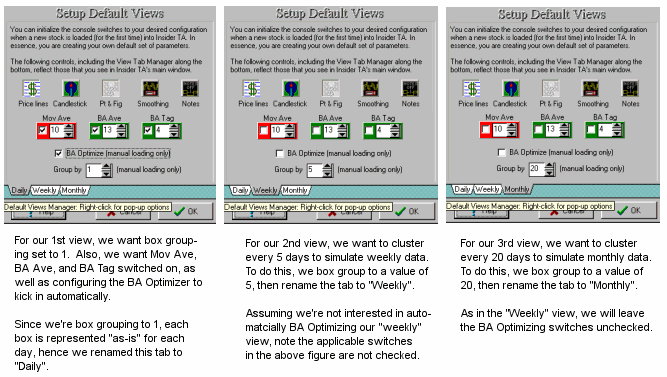
Here is an example of how you might want to setup your default views.
In all, there are three views, each with their own unique box grouping
value: 1 for daily, 5 for weekly, and 20 for monthly:
A common question is, if more than one default view has been created,
then which one does Insider TA initially use to display a stock?
Answer: The tab that's left on top of the others when you exit
the Config Options Panel.
|



