| If you are using Insider TA Pro Version and
deal exclusively with CSI, Metastock,
or TC2000 v7 data, you probably won't need the
ASCII Field Formatter Panel (explained below), so this page can be skipped.
The following items are discussed in this page:
ASCII Overview
The term "ASCII" (pronounced asskee) is an acronym for American
Standard Code for Information Interchange. It's a fancy word
that pertains to any text-based file that you can open, edit, and save
with any generic text editor program. When stock data is stored
in ASCII format, it is generally stored in a field-delimited format
where each line of data in the file corresponds to a day's trading activity.
Insider TA was designed to handle ASCII data whose fields (Date,
High, Low, Volume, etc.) can exist in any order. In this way, the program
can load files originating from numerous sources and data formats.
Here are the fields that are typical with ASCII data files:
- Date (any format, such as 8/22/95, 8-22-95, or 950822)
- Open Price
- High Price
- Low Price
- Last Price
- Volume (can be "as-is", hundreds, or thousands)
Additional fields sometimes found in ASCII files (but not used by Insider TA) are:
- Frequency (e.g., "D" or "W")
- Ticker Symbol
- Open Interest
Data items must be separated by one of the following delimiter characters:
- Comma
- Tab
- Semi-colon
- Space
The order of data items does not have to be fixed to any one standard.
Insider TA can accept data items in any field order. These, along
with the field delimiters, are configured in Insider TA through the use
of the ASCII Field Formatter Panel which is explained below.
You only need to enter this information once because Insider TA
remembers the unique configuration for each and every stock you view.
At a minimum, Insider TA requires High, Low,
and Volume in each line of data. This facilitates the "box
charting" technique embraced by Insider TA's analysis methods.
For instance, let's look at an arbitrary ASCII-based format consisting of the following fields:
- Ticker,Frequency,Date,High,Low,Last,Volume
A sample file, based on the above format and fully compatible with Insider
TA Standard (or Pro), is shown below:
- AOL,D,930928,58.0,56.5,58.0,39500
- AOL,D,930929,59.0,57.25,59.0,48100
- AOL,D,930930,59.0,57.0,57.0,35200
- AOL,D,931001,59.0,57.5,57.5,89300
- AOL,D,931004,58.0,57.5,58.0,9000
- AOL,D,931005,58.0,56.0,56.5,35900
Again, you are not limited to any one field format convention with Insider TA.
This freedom allows you to load data files from numerous data providers,
each with their own standards. For instance, you can also "teach" Insider
TA to load a text file whose data items appear in this order:
- Date,High,Low,Last,Volume
A sample file based on this format is...
- 1-21-92,1.25,1.125,417
- 1-22-92,1.125,1.125,20
- 1-23-92,1.375,1.125,215
- 1-24-92,1.375,1.25,207
- 1-27-92,1.375,1.125,17
- 1-28-92,1.5,1.5,23
Note how the date format is different in the second example. Insider TA
accepts any date format.
Back to top
ASCII Field Formatter Panel
Typically, programs require that each line of ASCII data be constructed
in an exact format, otherwise they won't be able to interpret what the
data pertains to. Insider TA can load ASCII files whose data items (High
price, low price, and so forth) can exist in any field order. The Field
Formatter Panel is responsible for entering this information:
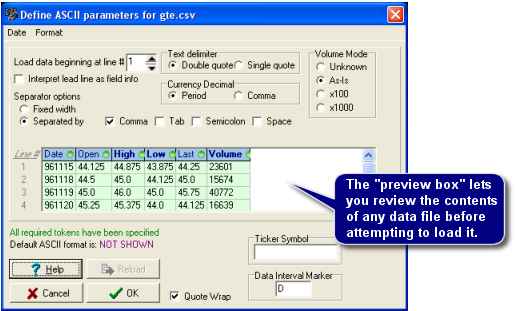
Dragging data items to their correct location
To define a field order, you compare a preview of the loaded data and
then drag the column headers to their desired location. If a data type
is not displayed in a column header, then right-click to pulldown a menu
of available selections. Some data files you encounter might have special
field header information. For these occurances, we recommend you check
the box titled "Interpret lead line as field info".
There are two options for loading ASCII files, as shown in the radio
box titled "Separator Options
In either method, you can click & drag any of the column headers
(shown in blue) to their desired location. Columns will turn green or
red to indicate valid field positions. Right-click a column to pop-up
a menu of available field types.
When the "Separated by" option is selected, you can define
what special characters are present that separate the various data items
(these are called field delimiters).
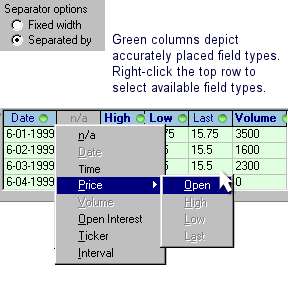
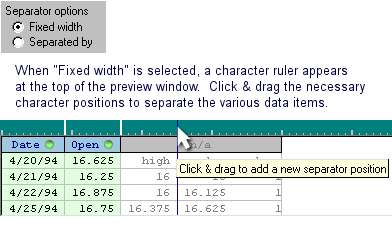
When the "Fixed width" option is selected, it is assumed that
the incoming file is not delimited with commas, tabs, or spaces, but instead
is columnized using white spaces in predefined widths. In the preview
window, the width of the data fields can be adjusted by clicking and moving
the window's character ruler as you wish.
The following Data Items can be manipulated:
- Date: the date for a line of data.
- Time: the time for a line of data (this field isn't typically used,
unless the hosted file represents intra-day data).
- High: the high price.
- Low: the low price.
- Vol: the volume, whose scale (x1, x100, x1000) is declared in the
Volume Mode Panel).
- Open: the opening price.
- Last: the closing, or last, price.
- Tick: the ticker symbol.
- Freq: a label that identifies the "frequency" of the data,
whether it be daily or weekly data.
- OInt: the "open-interest".
Specifying the order of various data items is performed by click &
dragging an item (we refer to them as tokens) to the desired location.
You can also right-click a column header. This action pops up a menu of
available data items to select for that field position.
After a field format has been specified for a particular stock file,
it is saved in the View Database. So you'll never have to configure the
field format for that stock ever again.
Skipping over fields:
Fields not occupied by a Data Item are labeled with a "n/a",
signifying that this particular field and its contents are "not applicable",
and should be skipped over when inputting data.
Back to top
|



